| Main Content HTML template |
HTML/CSS code to display each item. You can embed any of the following tags to display article information:
| {attachmentattrib} | Item attachment attribute field value |
| {attachmentdownload} | Displays a link to download the item attachment |
| {attachmenthits} | Hits of the item attachment |
| {attachmentname} | Name of the item attachment |
| {attachmenturl}</strong></td><td valign="top"> URL to item attachment</td></tr>
<tr><td valign="top"><strong>{attachment}</strong></td><td valign="top"> Direct URL to the item attachment</td></tr>
<tr><td valign="top"><strong>{authorname}</strong></td><td valign="top">Item author's name</td></tr>
<tr><td valign="top"><strong>{authorprofile}</strong></td><td valign="top">URL to author profile Page</td></tr>
<tr><td valign="top"><strong>{author}</strong></td><td valign="top">Item author's username</td></tr>
<tr><td valign="top"><strong>{avatar}</strong></td><td valign="top">Displays the author avatar thumbnail</td></tr>
<tr><td valign="top"><strong>{categorydescription_text}</strong></td><td valign="top">Shows the category description text without HTML tags</td></tr>
<tr><td valign="top"><strong>{categorydescription}</strong></td><td valign="top">Shows the raw category description text</td></tr>
<tr><td valign="top"><strong>{categoryid}</strong></td><td valign="top">ID number of the category</td></tr>
<tr><td valign="top"><strong>{categoryimageurl}</strong></td><td valign="top">URL to the category thumbnail image</td></tr>
<tr><td valign="top"><strong>{categoryimage}</strong></td><td valign="top">Displays the category thumbnail image</td></tr>
<tr><td valign="top"><strong>{categorytwitterlink}</strong></td><td valign="top">With this tag you will get the image to tweet the category that contains the item.</td></tr>
<tr><td valign="top"><strong>{categorytwitterurl}</strong></td><td valign="top">Use this tag to get the url to tweet the category that contains the item.</td></tr>
<tr><td valign="top"><strong>{categoryurl}</strong></td><td valign="top">URL to the item's category page</td></tr>
<tr><td valign="top"><strong>{category}</strong></td><td valign="top">Name of the category where the item belongs</td></tr>
<tr><td valign="top"><strong>{comments}</strong></td><td valign="top"> Number of comments done in the item</td></tr>
<tr><td valign="top"><strong>{count}</strong></td><td valign="top">Total number of rate entries</td></tr>
<tr><td valign="top"><strong>{date}</strong></td><td valign="top">Item creation date. Also supports an extra formatting parameter according to PHP date() function, eg: {date Ymd}</td></tr>
<tr><td valign="top"><strong>{featured}</strong></td><td valign="top">Returns a value of "N" or "Y" if the item is featured or not.</td></tr>
<tr><td valign="top"><strong>{field_xxxx yyy}</strong></td><td valign="top">Display a custom field value, where 'xxxx' is the field name as defined in K2. ENter a numeric 'yyy' value to limit the number of characters shown. For example: {field_custom 100}</td></tr>
<tr><td valign="top"><strong>{fullimage}</strong></td><td valign="top">URL to the first embedded image in the full text of the item</td></tr>
<tr><td valign="top"><strong>{fullnoimage}</strong></td><td valign="top">Item full text without images</td></tr>
<tr><td valign="top"><strong>{fulltext}</strong></td><td valign="top">Full text with all HTML removed</td></tr>
<tr><td valign="top"><strong>{hits}</strong></td><td valign="top"> Number of item hits</td></tr>
<tr><td valign="top"><strong>{id}</strong></td><td valign="top">The numeric ID of the K2 item</td></tr>
<tr><td valign="top"><strong>{imagegallery}</strong></td><td valign="top"> Displays the item image gallery</td></tr>
<tr><td valign="top"><strong>{imageGeneric}</strong></td><td valign="top"> Displays the Generic item image</td></tr>
<tr><td valign="top"><strong>{imageGenricurl}</strong></td><td valign="top"> URL to the Generic item image</td></tr>
<tr><td valign="top"><strong>{imageLargeurl}</strong></td><td valign="top"> URL to the Large item image</td></tr>
<tr><td valign="top"><strong>{imageLarge}</strong></td><td valign="top"> Displays the Large item image</td></tr>
<tr><td valign="top"><strong>{imageMediumurl}</strong></td><td valign="top"> URL to the Medium item image</td></tr>
<tr><td valign="top"><strong>{imageMedium}</strong></td><td valign="top">Displays the Medium item image</td></tr>
<tr><td valign="top"><strong>{imageOriginalurl}</strong></td><td valign="top"> URL to the Original item image</td></tr>
<tr><td valign="top"><strong>{imageOriginal}</strong></td><td valign="top"> Displays the Original item image</td></tr>
<tr><td valign="top"><strong>{imageSmallurl}</strong></td><td valign="top"> URL to the Small item image</td></tr>
<tr><td valign="top"><strong>{imageSmall}</strong></td><td valign="top"> Displays the Small item image</td></tr>
<tr><td valign="top"><strong>{imageXLargeurl}</strong></td><td valign="top"> URL to the XLarge item image</td></tr>
<tr><td valign="top"><strong>{imageXLarge}</strong></td><td valign="top"> Displays the XLarge item image</td></tr>
<tr><td valign="top"><strong>{imageXSmallurl}</strong></td><td valign="top"> URL to the XSmall item image</td></tr>
<tr><td valign="top"><strong>{imageXSmall}</strong></td><td valign="top"> Displays the XSmall item image</td></tr>
<tr><td valign="top"><strong>{index}</strong></td><td valign="top">A number representing the item's position within the module. Useful for Top-Ten lists.</td></tr>
<tr><td valign="top"><strong>{introimage}</strong></td><td valign="top">URL to the first embedded image in the introduction text</td></tr>
<tr><td valign="top"><strong>{intronoimage}</strong></td><td valign="top">Introduction text with images removed (all other HTML is preserved)</td></tr>
<tr><td valign="top"><strong>{introtext}</strong></td><td valign="top">Introduction text with all HTML removed</td></tr>
<tr><td valign="top"><strong>{intro}</strong></td><td valign="top">Raw introduction text (might contain HTML code).</td></tr>
<tr><td valign="top"><strong>{itemtwitterlink}</strong></td><td valign="top">With this tag you will get the image to tweet the item.</td></tr>
<tr><td valign="top"><strong>{itemtwitterurl}</strong></td><td valign="top">Use this tag to get the url to tweet the item.</td></tr>
<tr><td valign="top"><strong>{language language_token}</strong></td><td valign="top">Display a language token, default value is K2_READ_MORE to show "Read More"</td></tr>
<tr><td valign="top"><strong>{lastip}</strong></td><td valign="top">Lastip value</td></tr>
<tr><td valign="top"><strong>{link}</strong></td><td valign="top">URL to the K2 item page</td></tr>
<tr><td valign="top"><strong>{moddate}</strong></td><td valign="top">Last item modification date. Also supports an extra formatting parameter according to PHP date() function, eg: {moddate Ymd}</td></tr>
<tr><td>{publish_up}</td><td>Item publish up date. Also supports an extra formatting parameter according to PHP date() function, eg: {date Ymd}</td></tr>
<tr><td>{publish_down}</td><td>Item publish down date. Also supports an extra formatting parameter according to PHP date() function, eg: {date Ymd}</td></tr>
<tr><td valign="top"><strong>{rate}</strong></td><td valign="top">Use this tag to get the interactive rate level, With this tag your visitors can rate the item beign shown</td></tr>
<tr><td valign="top"><strong>{ratingcount}</strong></td><td valign="top">Count of rate points</td></tr>
<tr><td valign="top"><strong>{ratingsum}</strong></td><td valign="top">Sum of rate points</td></tr>
<tr><td valign="top"><strong>{rating}</strong></td><td valign="top">Use this tag to show the rate level image</td></tr>
<tr><td valign="top"><strong>{rawfulltext}</strong></td><td valign="top">Item raw full text (image tags and other HTML are preserved)</td></tr>
<tr><td valign="top"><strong>{relatedlink}</strong></td><td valign="top">Related items shown as links to them</td></tr>
<tr><td valign="top"><strong>{relatedname}</strong></td><td valign="top">This tag will show the related items information</td></tr>
<tr><td valign="top"><strong>{taglinks}</strong></td><td valign="top">Use this tag to show the tags as a link to other items sharing the same tag</td></tr>
<tr><td valign="top"><strong>{tagnames}</strong></td><td valign="top">Use this tag to show the tags of the item</td></tr>
<tr><td valign="top"><strong>{title}</strong></td><td valign="top">Item title</td></tr>
<tr><td valign="top"><strong>{video}</strong></td><td valign="top"> Displays the item video</td></tr>
</table>
</td>
</tr>
<tr><td valign="top"><strong>Avatar width</strong></td><td valign="top">Use to set the width of the avatar. Note: The avatar tags only work if the compatibility is active.</td></tr>
<tr><td valign="top"><strong>Avatar height</strong></td><td valign="top">Use to set the height of the avatar. Note: The avatar tags only work if the compatibility is active.</td></tr>
<tr><td valign="top"><strong>Max. title length</strong></td><td valign="top">Maximum length of {title} tag. Empty = no limit.</td></tr>
<tr><td valign="top"><strong>Max. title suffix</strong></td><td valign="top">Suffix to show when trimming the title.</td></tr>
<tr><td valign="top"><strong>Max. intro length</strong></td><td valign="top">Maximum length of {introtext} tag. Empty = no limit.</td></tr>
<tr><td valign="top"><strong>Max. intro suffix</strong></td><td valign="top">Suffix to show when trimming the intro text.</td></tr>
<tr><td valign="top"><strong>Max. full text length</strong></td><td valign="top">Maximum length of {fulltext} or {rawfulltext} tags. Empty = no limit.</td></tr>
<tr><td valign="top"><strong>Max. full text suffix</strong></td><td valign="top">Suffix to show when trimming full text.</td></tr>
<tr><td valign="top"><strong>Full text break keyword</strong></td><td valign="top">Display article text up to this string mark is found (including). Leave empty to display all text.</td></tr>
<tr><td valign="top"><strong>Date format</strong></td><td valign="top">Date format (using PHP date function). Defaulty is: Y-m-d</td></tr>
</table><div style="clear:both;"></div>
<br /><strong>'MORE' AREA CONFIGURATION</strong> - Use these parameters to customize the 'more' area block in the module.<br /><br />
<table class="reference">
<tr><td valign="top"><strong>'More' Content HTML template</strong></td><td valign="top">HTML/CSS code to display each article. You can embed any of the supported tags to display article information.</td></tr>
<tr><td valign="top"><strong>More titles</strong></td><td valign="top">Offer links to more article titles.</td></tr>
<tr><td valign="top"><strong>Clone from main?</strong></td><td valign="top">Enabling this will make the articles in the more section be the same as in the main section.</td></tr>
<tr><td valign="top"><strong>More Columns</strong></td><td valign="top">Number of articles to show horizontally. If number of articles is higher, multiple rows will be shown.</td></tr>
<tr><td valign="top"><strong>More legend</strong></td><td valign="top">Legend to show in read more area.</td></tr>
<tr><td valign="top"><strong>More legend color</strong></td><td valign="top">Legend color.</td></tr>
<tr><td valign="top"><strong>Max. length for title text</strong></td><td valign="top">Maximum length of {title} tag. Empty = no limit.</td></tr>
<tr><td valign="top"><strong>Max. title suffix</strong></td><td valign="top">Suffix to show when trimming the title.</td></tr>
<tr><td valign="top"><strong>Max. length for intro text</strong></td><td valign="top">Maximum length of {introtext} tag. Empty = no limit.</td></tr>
<tr><td valign="top"><strong>Max. intro suffix</strong></td><td valign="top">Suffix to show when trimming the intro text.</td></tr>
<tr><td valign="top"><strong>Max. full text length</strong></td><td valign="top">Maximum length of {fulltext} or {rawfulltext} tags. Empty = no limit.</td></tr>
<tr><td valign="top"><strong>Max. full text suffix</strong></td><td valign="top">Suffix to show when trimming full text.</td></tr>
<tr><td valign="top"><strong>Full text break keyword</strong></td><td valign="top">Display article text up to this string mark is found (including). Leave empty to display all text.</td></tr>
<tr><td valign="top"><strong>Module Class Suffix</strong></td><td valign="top">A suffix to be applied to the CSS class of the module.</td></tr>
</table><div style="clear:both;"></div>
<h5 class="squaregrey" style="margin-bottom:24px; font-size:24px; padding-bottom:16px; border-bottom:1px solid #ebebeb;">Advanced Parameters</h5>
<p><a href="/images/stories/walls/k2w/paramsavz.png" class="jxtc5f98d5b050e94"><img border="0" style="margin-top: 0pt; float: right;" title="Module advanced parameters" alt="Module advanced parameters" src="/images/stories/walls/k2w/paramsavz-thumb.png" /></a>
These parameters control the behavior of special content effects, please read the next section for more information about content effects and how to apply them.
</p>
<div style="clear:both;"></div>
<table class="reference">
<tr><td valign="top"><strong>Show number of votes?</strong></td><td valign="top">Choose if want to show the number of votes in the {rate} and {rating} tag</td></tr>
<tr><td valign="top"><strong>Max. related items </strong></td><td valign="top">Maximum number of related items, only works if use {related} tag</td></tr>
<tr><td valign="top"><strong>Category twitter text</strong></td><td valign="top">Select the text that want to the tag {categorytwitterlink} display</td></tr>
<tr><td valign="top"><strong>Item twitter text</strong></td><td valign="top">Select the text that want to the tag {itemtwitterlink} display</td></tr>
<tr><td valign="top"><strong>Z layer</strong></td><td valign="top">Define the z-index layer to use for the special effect content.</td></tr>
<tr><td colspan="2"><br /><strong>Tooltip / Pop-Up FX Settings</strong> - Use these parameters to customize the Tooltip and Pop-Up effects:<br /><br /></td></tr>
<tr><td valign="top"><strong>In Opacity</strong></td><td valign="top">The opacity of the tooltip/pop-up when the mouse enters the trigger zone. A value of 0 will make the display transparent while a value of 1 will make it opaque, values range from 0 to 1 in decimal increments. </td></tr>
<tr><td valign="top"><strong>Out Opacity</strong></td><td valign="top">The opacity of the tooltip/pop-up when the mouse leaves the trigger zone. A value of 0 will make the display transparent while a value of 1 will make it opaque, values range from 0 to 1 in decimal increments.</td></tr>
<tr><td valign="top"><strong>In Animation Vertical</strong></td><td valign="top">The distance the tooltip/pop-up will move vertically (in pixels) when the mouse enters the trigger zone.</td></tr>
<tr><td valign="top"><strong>Out Animation Vertical</strong></td><td valign="top">The distance the tooltip/pop-up will move vertically (in pixels) when the mouse leaves the trigger zone.</td></tr>
<tr><td valign="top"><strong>In Animation Horizontal</strong></td><td valign="top">The distance the tooltip/pop-up will move horizontally (in pixels) when the mouse enters the trigger zone.</td></tr>
<tr><td valign="top"><strong>Out Animation Horizontal</strong></td><td valign="top">The distance the tooltip/pop-up will move horizontally (in pixels) when the mouse leaves the trigger zone.</td></tr>
<tr><td valign="top"><strong>Fade-in Duration</strong></td><td valign="top">The duration of the "In" animation when the mouse pointer enters the trigger zone (in milliseconds).</td></tr>
<tr><td valign="top"><strong>Fade-Out duration</strong></td><td valign="top">The duration of the "Out" animation when mouse pointer leaves the trigger zone (in milliseconds).</td></tr>
<tr><td valign="top"><strong>Pause</strong></td><td valign="top">The time the tooltip/pop-up will be shown between the "In" animation and the "Out" animation (in milliseconds).</td></tr>
<tr><td valign="top"><strong>Tooltip animation mode</strong></td><td valign="top">Select one of the many Moo functions to perform animations.</td></tr>
<tr><td valign="top"><strong>Tooltip / Popup ease mode</strong></td><td valign="top">The transition type. All transitions, except for "linear" transition, can be combined with a "Transition Ease".</td></tr>
<tr><td valign="top"><strong>Centered Popup</strong></td><td valign="top">Set this to "Yes" if you want pop-up effect displays to appear centered in the browser window.</td></tr>
<tr><td colspan="2"><strong><br />Slide FX Settings</strong> - These parameters control the "Slide" content effect:<br /><br /></td></tr>
<tr><td valign="top"><strong>Sliding Panels Settings</strong></td><td valign="top">Choose an animation style from the list.</td></tr>
<tr><td valign="top" colspan="2"><strong>Note:</strong> The following Settings are used ONLY when Slide Panels Settings is set to CUSTOM:</td></tr>
<tr><td valign="top"><strong>Slide Panel X in</strong></td><td valign="top">The distance (in pixels) from the left trigger zone border that the slide panel will go to when the mouse enters the trigger zone.</td></tr>
<tr><td valign="top"><strong>Slide Panel X out</strong></td><td valign="top">The distance (in pixels) from the left trigger zone border that the slide panel will go to when the mouse leaves the trigger zone.</td></tr>
<tr><td valign="top"><strong>Slide Panel Y in</strong></td><td valign="top">The distance (in pixels) from the top trigger zone border that the slide panel will go to when the mouse enters the trigger zone.</td></tr>
<tr><td valign="top"><strong>Slide Panel Y out</strong></td><td valign="top">The distance (in pixels) from the top trigger zone border that the slide panel will go to when the mouse leaves the trigger zone.</td></tr>
<tr><td valign="top"><strong>Slide animation mode</strong></td><td valign="top">Select one of the many Moo functions to animate the slide effects.</td></tr>
<tr><td valign="top"><strong>Slide ease mode</strong></td><td valign="top">Choose how to apply the animation effect. This setting is not used when "Slide Animation Mode" is set to Linear.</td></tr>
<tr><td valign="top"><strong>Frames per Second</strong></td><td valign="top">The frames per second used to animate the effect. Note: Using a high value in a heavy site could decrease the video performance. Combine this setting with "Frame Duration" to get a smooth effect.</td></tr>
<tr><td valign="top"><strong>Fame Duration</strong></td><td valign="top">The time (in milliseconds) the duration will last.</td></tr>
<tr><td colspan="2"><strong><br />Hover FX Settings</strong> - These Parameters Control the Hover Effect:<br /><br /></td></tr>
<tr><td valign="top"><strong>Hover Effect in Color</strong></td><td valign="top">The background color that will fade in when mouse enter the element with class="js_hover".</td></tr>
<tr><td valign="top"><strong>Hover Effect Out Color</strong></td><td valign="top">The background color that will fade out when mouse leaves the element with class="js_hover".</td></tr>
</table>
<div style="clear:both;"></div>
<h5 class="squaregrey" style="margin-bottom:24px; font-size:24px; padding-bottom:16px; border-bottom:1px solid #ebebeb;">Special Effects</h5>
<p>Besides the page transition effects, you can also include additional effects that apply to the content of each item. By adding certain CSS tags to your HTML code and organizing the layout of content, these effects allow you to build fully customizable tooltips, pop-ups and slide effects. Since all the content data tags are available on these effects as well, you can elaborate the display of your content as much as you want!</p>
<p>Keep in mind however, that with great power comes great responsibility: the HTML of both zones is still part of the HTML code of your page; if your HTML/CSS code has a bug, it may affect how other parts of your site look and work.</p>
<p>Content effects are activated by the user's mouse pointer but with subtle differences. How you can implement each effect and how they are activated is explained below:</p>
<h5 class="squaregrey" style="margin-bottom:24px; font-size:24px; padding-bottom:16px; border-bottom:1px solid #ebebeb;">Tooltips</h5>
<p>A Tooltip will appear automatically when the mouse pointer hovers over a specific "trigger zone", this example code explains better how to use the necessary tags:</p>
<table>
<tr><td><p>Code Sample</p></td><td><p>Sample Effect</p></td></tr>
<tr><td valign="top"><pre style="width: 300px; height:135px; margin-top: -20px; border:1px solid #cccccc;"><xmp><div class="jxtctooltip">
This is the tooltip trigger zone
<div class="tip">
This is the tooltip content
</div>
</div></xmp></pre></td><td valign="top">
<div style="width: 300px; height: 115px; margin-top: -20px; padding: 20px 10px; background-color: #eeeeee; border:1px solid #cccccc;">
<div class="xtc_fx">
<div class="jxtctooltip">This is the tooltip trigger zone
<div class="tip">This is the tooltip content</div>
</div>
</div>
</div></td></tr></table>
<p>Upon display, this code will show the "This is the tooltip trigger zone" legend by itself, but if you move the mouse pointer over it, a tooltip will come up displaying the "This is the tooltip content" legend. Each zone is wrapped within a tag, you must use the CSS tags "jxtctooltip" and "tip" as shown to make the effect work.</p>
<h5 class="squaregrey" style="margin-bottom:24px; font-size:24px; padding-bottom:16px; border-bottom:1px solid #ebebeb;">Pop-ups</h5>
<p>A pop-up will appear when the user clicks on the "trigger zone", the Pop-up zone has its own <em>Close</em> and <em>Drag</em> buttons. This example code shows the necessary CSS tags in use:</p>
<table>
<tr><td><p>Code Sample<p></td><td><p>Sample Effect<p></td></tr>
<tr><td valign="top"><pre style="width: 300px; height:135px; margin-top: -20px; border:1px solid #cccccc;"><xmp><div class="popuphover">
This is the pop-up trigger zone
<div class="pop">
This is the pop-up content
</div>
</div></xmp>
</pre></td>
<td valign="top"><div style="width: 300px; height: 115px; margin-top: -20px; padding: 20px 10px; background-color: #eeeeee; border:1px solid #cccccc;">
<div class="xtc_fx">
<div class="popuphover">This is the pop-up trigger zone
<div class="pop">This is the pop-up content</div>
</div>
</div>
</div></td></tr></table>
<p>The trigger zone is made with the contents of the div with class "popuphover", and the pop-up content is hidden in the div with class "pop", it will be shown when the user clicks on the trigger zone.</p>
<h5 class="squaregrey" style="margin-bottom:24px; font-size:24px; padding-bottom:16px; border-bottom:1px solid #ebebeb;">Slides</h5>
<p>Slides are useful to display content in different layers, for example imagine a picture with a footnote that expands to show a full description. Different than Tooltips or Pop-ups, Slides do not use a trigger zone, they react to mouse pointer over their own zones. This is an example code:</p>
<table>
<tr><td><p>Code Sample<p></td><td><p>Sample Effect<p></td></tr>
<tr>
<td valign="top"><pre style="width: 300px; height:135px; margin-top: -20px; border:1px solid #cccccc;"><xmp><div class="slidebox">
This is the content zone
<div class="slidepanel">
This is the slide content zone
</div>
</div></xmp>
</pre></td><td valign="top"><div style="width: 300px; height: 115px; margin-top: -20px; padding: 20px 10px; background-color: #eeeeee; border:1px solid #cccccc;">
<div class="xtc_fx">
<div class="slidebox">This is the content zone
<div class="slidepanel">This is the slide content zone</div>
</div>
</div>
</div></td></tr></table>
<p>Again, the container zone inside the div with CSS class "slidebox" will be shown first, and the contents of the slide on div "slidepanel" will be shown when the mouse hovers its zone.</p>
<h5 class="squaregrey" style="margin-bottom:24px; font-size:24px; padding-bottom:16px; border-bottom:1px solid #ebebeb;">Hover</h5>
<p>The Hover is useful when you want to focus on specific zone of the content, for example a "clickable" zone that looks similar to other content, an image or name that want to highlight. Similar to Slides, they react to mouse pointer over their own zones and does not need a trigger zone. This is an example code:</p>
<table>
<tr><td><p>Code Sample<p></td><td><p>Sample Effect<p></td></tr>
<tr>
<td valign="top"><pre style="width: 300px; height:135px; margin-top: -20px; border:1px solid #cccccc;"><xmp>This is the content zone
<div class="js_hover">
The content with highlight
</div>
This is the rest of content zone</xmp>
</pre></td><td valign="top"><div style="width: 300px; height: 115px; margin-top: -20px; padding: 20px 10px; background-color: #eeeeee; border:1px solid #cccccc;">
<div class="xtc_fx">
This is the content zone
<div class="js_hover">The content with highlight</div>
This is the rest of content zone
</div>
</div></td></tr></table>
<p>Once the mouse is over the js_hover zone the color will change automatically. As you can see this is the easier effect but provide you the power to catch the attention of your visitors.</p>
<h5 class="squaregrey" style="margin-bottom:24px; font-size:24px; padding-bottom:16px; border-bottom:1px solid #ebebeb;">Styling</h5>
<p>As previously explained, the content is rendered in a grid fashion with one or more rows and columns and one or more pages, each page represents a single grid. Each cell in a grid contains the template code for one item with the placeholder tags translated to their corresponding data element such as titles, descriptions, images, etc.</p>
<p>In order to ease the visual styling of the grids, there are certain common CSS classes added to the HTML code for your convenience. You can put hard-coded CSS styling in the XTS template fields directly, but you may find using your template's CSS file a better option.</p>
<p>If you can't or don't want to alter your main CSS file, you can put any CSS code needed in the module's own file: <strong>css/wall.css</strong>. This file is located inside the module folder.
<p>This is a brief explanation on how the HTML and classes are applied:</p>
<p>Each page in the module output is made with an HTML tag; the first table has CSS class <strong>firstpage</strong>, any inner pages have class <strong>centerpage</strong> and the last page has class <strong>lastpage</strong>. If there is only one page then it has class <strong>singlepage</strong>.</p>
<p>Each row within a table also has similar classes added to it: <strong>firstrow</strong> for the top row in the table, <strong>centerrow</strong> for any middle rows and <strong>lastrow</strong> for the bottom row of content. In the event that only a single row is used, it will have class <strong>singlerow</strong> assigned to it. These clases are repeated for as many tables (pages) are in the module output.</p>
<p>Likewise, columns also have similar tags: the left-most column has <strong>firstcol</strong>, the right-most column has <strong>lastcol</strong> and any middle column has <strong>centercol</strong>. Single columns have, you guessed it, <strong>singlecol</strong>. These classes are also applied on all pages shown.</p>
<p>Buttons also have extra CSS classes: <strong>prevbutton</strong> and <strong>nextbutton</strong> apply to the tags for each page change button. Page number buttons have tags as well: <strong>firstbutton</strong>, <strong>middlebutton</strong>, <strong>lastbutton</strong> and <strong>centerbutton</strong>.</p>
<p>You can have a common set of CSS styling code for these tags in your template's CSS file to maintain a consistent appearance on any modules being shown, or you can use them in combination with the module CSS class parameter to define specific styling for a particular module.</p>
<p>With these many options, the styling possibilities are unlimited! You are in total control of how the content will be shown in your site, just let the module handle the content gathering for you.</p>
<h5 class="squaregrey" style="margin-bottom:24px; font-size:24px; padding-bottom:16px; border-bottom:1px solid #ebebeb;">Examples:</h5>
<p>As configuration examples, take a look at these parameter setups from our demo pages:</p>
<ul>
<li><a rel="{handler: 'iframe', size: {x: 675, y: 450}}" href="/images/stories/walls/k2w/demo1.html" class="jxtc5f98d5b050e94">K2 Content Wall Pop up video</a></li>
<li><a rel="{handler: 'iframe', size: {x: 675, y: 450}}" href="/images/stories/walls/k2w/demo2.html" class="jxtc5f98d5b050e94">K2 Content Wall Module Slideshow</a></li>
<li><a rel="{handler: 'iframe', size: {x: 675, y: 450}}" href="/images/stories/walls/k2w/demo3.html" class="jxtc5f98d5b050e94">K2 Content Wall Module Featured</a></li>
<li><a rel="{handler: 'iframe', size: {x: 675, y: 450}}" href="/images/stories/walls/k2w/demo4.html" class="jxtc5f98d5b050e94">K2 Content Wall Module Tool tip</a></li>
<li><a rel="{handler: 'iframe', size: {x: 675, y: 450}}" href="/images/stories/walls/k2w/demo5.html" class="jxtc5f98d5b050e94">K2 Content Wall Module Sidepanel</a></li>
<li><a rel="{handler: 'iframe', size: {x: 675, y: 450}}" href="/images/stories/walls/k2w/demo6.html" class="jxtc5f98d5b050e94">K2 Content Wall Module Window</a></li>
</ul>
<h2>Video Tutorial</h2>
<style>.embed-container { position: relative; padding-bottom: 56.25%; height: 0; overflow: hidden; max-width: 100%; } .embed-container iframe, .embed-container object, .embed-container embed { position: absolute; top: 0; left: 0; width: 100%; height: 100%; }</style><div class='embed-container'><iframe src='https://www.youtube.com/embed/rJPBR4OA2k4' frameborder='0' allowfullscreen></iframe></div>
Copyright 2010 Monev Software LLC
www.joomlaxtc.com
</div> </div>
</div>
</div>
</div>
</div>
</div>
</div>
<div id="region4wrap" class="xtc-bodygutter"><div id="region4pad" class="xtc-wrapperpad"><div id="region4" class="row-fluid xtc-wrapper"><div class="span12"><div id="user13_18" class="clearfix r4spacer_top"><div class="row-fluid"><div id="user13" class="xtcBootstrapGrid span12 singlecolumn cols-1 column-1"><div class="singlearea"><div class="module title-on modcenter nomarg nopad s-ticket">
<h3 class="moduletitle">
<span class="first_word">Didn't find an Answer?</span> </h3>
<div class="modulecontent"> <center>
<p style="font-size:20px;">If you didn't find the answer you were looking for from the links above. </p><br>
<br><br>
<a class="squarebutton" href="/support/tickets">SUBMIT SUPPORT TICKET</a>
</center> </div>
</div>
</div></div></div></div></div></div></div></div><div id="region9wrap" class="xtc-bodygutter"><div id="region9pad" class="xtc-wrapperpad"><div id="region9" class="row-fluid xtc-wrapper"><div class="row-fluid"><div id="bottom1" class="xtcBootstrapGrid span12 singlecolumn cols-1 column-1"><div class="firstarea"><div class="module title-on modcenter nomarg">
<h3 class="moduletitle">
<span class="first_word">Popular Questions </span> </h3>
<div class="modulecontent"> <div id="jxtcwall884"><div align="center" >
<div class="popquest" ><div id="wallviewjxtcwall884" class="wallviewbootstrap columns-6 rows-1" style="overflow:hidden"><div class="wallspinner"></div><div id="wallsliderjxtcwall884" class="wallslider"><div class="wallsliderrow"><div class="wallslidercell"><div class="wallpage oddpage singlepage page-1" ><div class="row-fluid singlerow oddrow row-1"><div class="span2 firstcol oddcol col-1" ><a href="/support/template/template-help/logo-issues"><div class="supportcatwrap">
<div class="supportcatimg"><i class="fa fa-star"></i></div>
<p>Logo Issues</p>
</div>
</a></div><div class="span2 centercol evencol col-2" ><a href="/support/template/template-help/ajax-parse-error"><div class="supportcatwrap">
<div class="supportcatimg"><i class="fa fa-star"></i></div>
<p>Error Messages</p>
</div>
</a></div><div class="span2 centercol oddcol col-3" ><a href="/support/template/template-help/mobile-display-issues"><div class="supportcatwrap">
<div class="supportcatimg"><i class="fa fa-star"></i></div>
<p>Mobile Display</p>
</div>
</a></div><div class="span2 centercol evencol col-4" ><a href="/support/template/template-help/finding-and-editing-css"><div class="supportcatwrap">
<div class="supportcatimg"><i class="fa fa-star"></i></div>
<p>Editing CSS</p>
</div>
</a></div><div class="span2 centercol oddcol col-5" ><a href="/support/template/template-help/quickstart-installation"><div class="supportcatwrap">
<div class="supportcatimg"><i class="fa fa-star"></i></div>
<p>Quickstart Installation</p>
</div>
</a></div><div class="span2 lastcol evencol col-6" ><a href="/support/billing/billing-help/automatically-charged"><div class="supportcatwrap">
<div class="supportcatimg"><i class="fa fa-star"></i></div>
<p>Automatic Charges</p>
</div>
</a></div></div></div></div></div></div></div></div></div>
<br><br></div> </div>
</div>
</div><div class="lastarea"><div class="module title-on modcenter nomarg s-ticket">
<h3 class="moduletitle">
<span class="first_word">Didn't find an Answer?</span> </h3>
<div class="modulecontent"> <center>
<p style="font-size:20px;">If you didn't find the answer you were looking for from the links above. </p>
<br><br><br>
<a class="squarebutton" href="/support/tickets">SUBMIT SUPPORT TICKET</a>
</center> </div>
</div>
</div></div></div></div></div></div><div id="region10wrap" class="xtc-bodygutter"><div id="region10pad" class="xtc-wrapperpad"><div id="region10" class="row-fluid xtc-wrapper"><div class="row-fluid"><div id="bottom8" class="xtcBootstrapGrid span4 firstcolumn cols-3 column-1"><div class="singlearea"><div class="module title-on ">
<h3 class="moduletitle">
<span class="first_word">OUR PRODUCTS</span> </h3>
<div class="modulecontent">
<ul class="menu xtcdefaultmenu">
<li class="item-1004 subcol0"><a href="/joomla-templates" >Premium Joomla Templates</a></li><li class="item-1006 subcol1"><a href="/joomla-extensions" >Premium Joomla Extensions</a></li><li class="item-1005 subcol0"><a href="/resources/free-templates" >Free Joomla Templates</a></li><li class="item-1007 subcol1"><a href="/resources/free-joomla-extensions" >Free Joomla Extensions</a></li><li class="item-1008 subcol0"><a href="/club-memberships" >Best Joomla Club Plans</a></li></ul>
</div>
</div>
</div></div><div id="bottom9" class="xtcBootstrapGrid span4 centercolumn cols-3 column-2"><div class="singlearea"><div class="module title-on ">
<h3 class="moduletitle">
<span class="first_word">SITE LINKS</span> </h3>
<div class="modulecontent">
<ul class="menu xtcdefaultmenu">
<li class="item-1013 active subcol0"><a href="/support" >Support</a></li><li class="item-1014 subcol1"><a href="/contact-us" >Contact Us</a></li><li class="item-1015 subcol0"><a href="/club-memberships" >Club Plans</a></li><li class="item-1016 subcol1"><a href="/terms-and-conditions" >Terms and Conditions</a></li><li class="item-1018 subcol0"><a href="/privacy-notice" >Privacy Notice</a></li></ul>
</div>
</div>
</div></div><div id="bottom10" class="xtcBootstrapGrid span4 lastcolumn cols-3 column-3"><div class="firstarea"><div class="module title-off nopad nomarg">
<div class="modulecontent"> <div class="getsocial">
<a href="http://www.facebook.com/joomlaxtc" target="_blank">
<div class="scircle col-1">
<i class="fa fa-facebook"></i>
</div>
</a>
<a href="http://www.twitter.com/joomlaxtc" target="_blank">
<div class="scircle col-2">
<i class="fa fa-twitter"></i>
</div>
</a>
<a href="https://plus.google.com/+Joomlaxtc" target="_blank">
<div class="scircle col-4">
<i class="fa fa-google-plus"></i>
</div>
</a>
<a href="http://www.youtube.com/user/joomlaxtc" target="_blank">
<div class="scircle col-5">
<i class="fa fa-youtube"></i>
</div>
</a>
<a href="https://www.linkedin.com/company/monev-software-llc" target="_blank">
<div class="scircle col-6">
<i class="fa fa-linkedin"></i>
</div>
</a>
</div>
</div>
</div>
</div><div class="lastarea"><div class="module title-on nopad nomarg">
<h3 class="moduletitle">
<span class="first_word">JOIN OUR NEWSLETTER</span> </h3>
<div class="modulecontent"> <form id="subscribe" action="index.php?option=com_jxtccontrol&task=newsletters.subscribe" method="post" class="validate" validate>
<label for="email">Subscribe to our mailing list</label>
<input type="email" value="" name="email" class="email" id="email" placeholder="email address" required>
<div class="clear">
<input type="submit" value="Subscribe" class="button">
</div>
<input type="hidden" name="return" value="L3N1cHBvcnQvZXh0ZW5zaW9uL2V4dGVuc2lvbi1ndWlkZXMvazItY29udGVudC13YWxs" />
<input type="hidden" name="a9c31a6ed6efc2efbac424b99d358a57" value="1" /></form>
</div>
</div>
</div></div></div></div></div></div><div id="footerwrap" class="xtc-bodygutter">
<div id="footerwrappad" class="xtc-wrapperpad">
<div id="footerpad" class="row-fluid xtc-wrapper"><div class="row-fluid"><div id="footer" class="xtcBootstrapGrid span12 singlecolumn cols-1 column-1"><div class="firstarea"><div class="module title-off ">
<div class="modulecontent"> <center><p style="font-size:10px;margin:12px 0;color:#fff">
© 2007-2018 Monev Software LLC. All Rights Reserved.<br>Joomla! is Free Software released under the GNU/GPL License. Joomla is a trademark of Open Source Matters and the name is used under a limited license from Open Source Matters in the United States and other countries.<br>Joomlaxtc.com / Monev Software LLC is not affiliated with or endorsed by Open Source Matters or the Joomla! Project..</p></center> </div>
</div>
</div><div class="lastarea"><div class="module title-off ">
<div class="modulecontent"> <div class="bannergroup">
<div class="banneritem">
<center>
<a href="https://ccp.cloudaccess.net/aff.php?aff=4654"><img border="0" alt="Try Joomla! Hosting Free for 30 Days | Cloudaccess.net" src="https://www.cloudaccess.net/images/badges/joomla/try-joomla-free.png" height="60" width="468" /></a>
</center> <div class="clr"></div>
</div>
</div>
</div>
</div>
</div></div></div></div>
</div>
</div>
<a href="https://plus.google.com/+Joomlaxtc" rel="publisher"></a>
</body>
</html>
| |

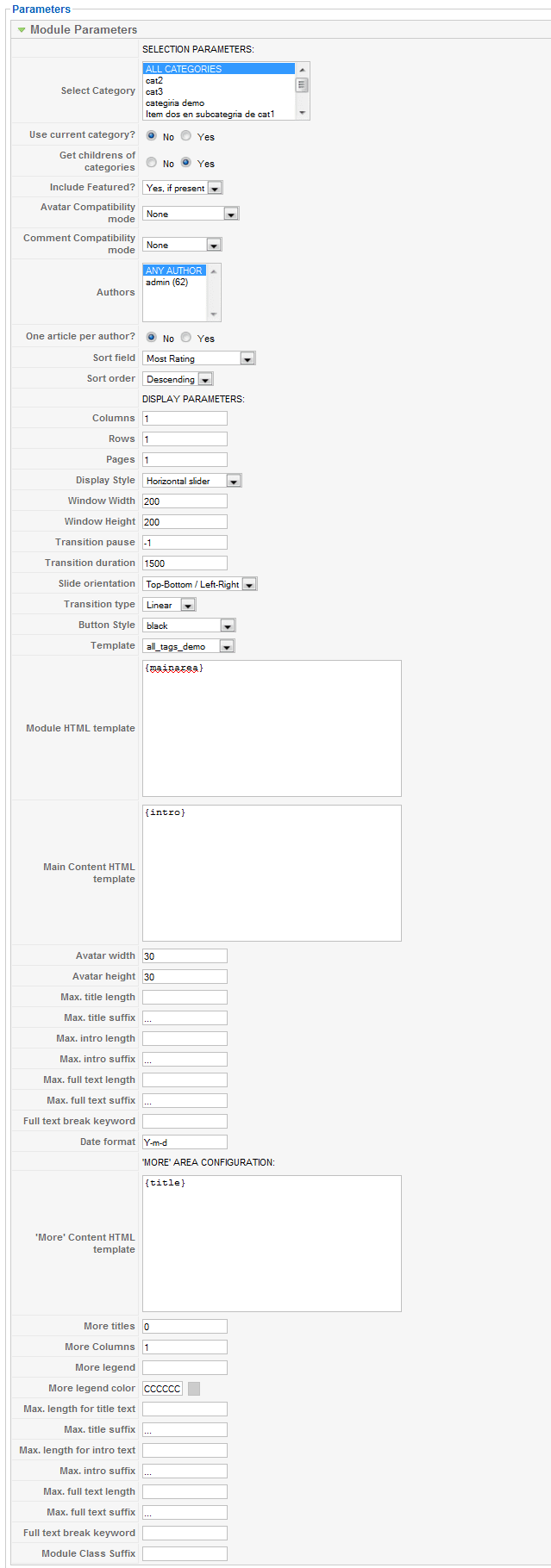 Use these parameters to customize the standard presentation of the module